Upscale small files
Create a larger result from scans that look undersized on phones, tablets, and high-resolution computer displays.
AI old photo enhancer
Improve resolution and visible detail in small or softened vintage scans. Use AI enhancement as a careful viewing copy while preserving the untouched original.
No signup · No watermark · JPG, PNG and WebP up to 10MB
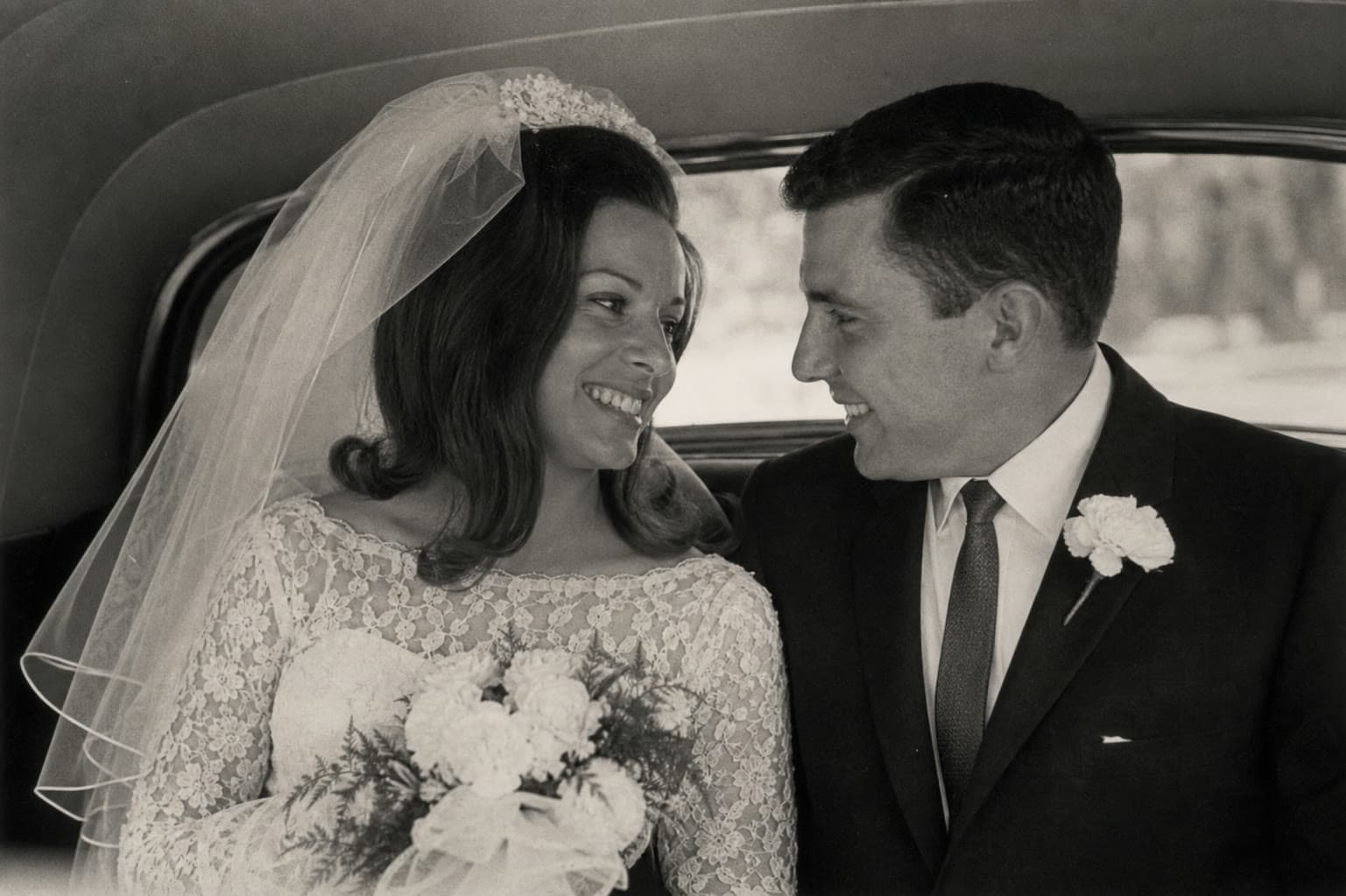 Before
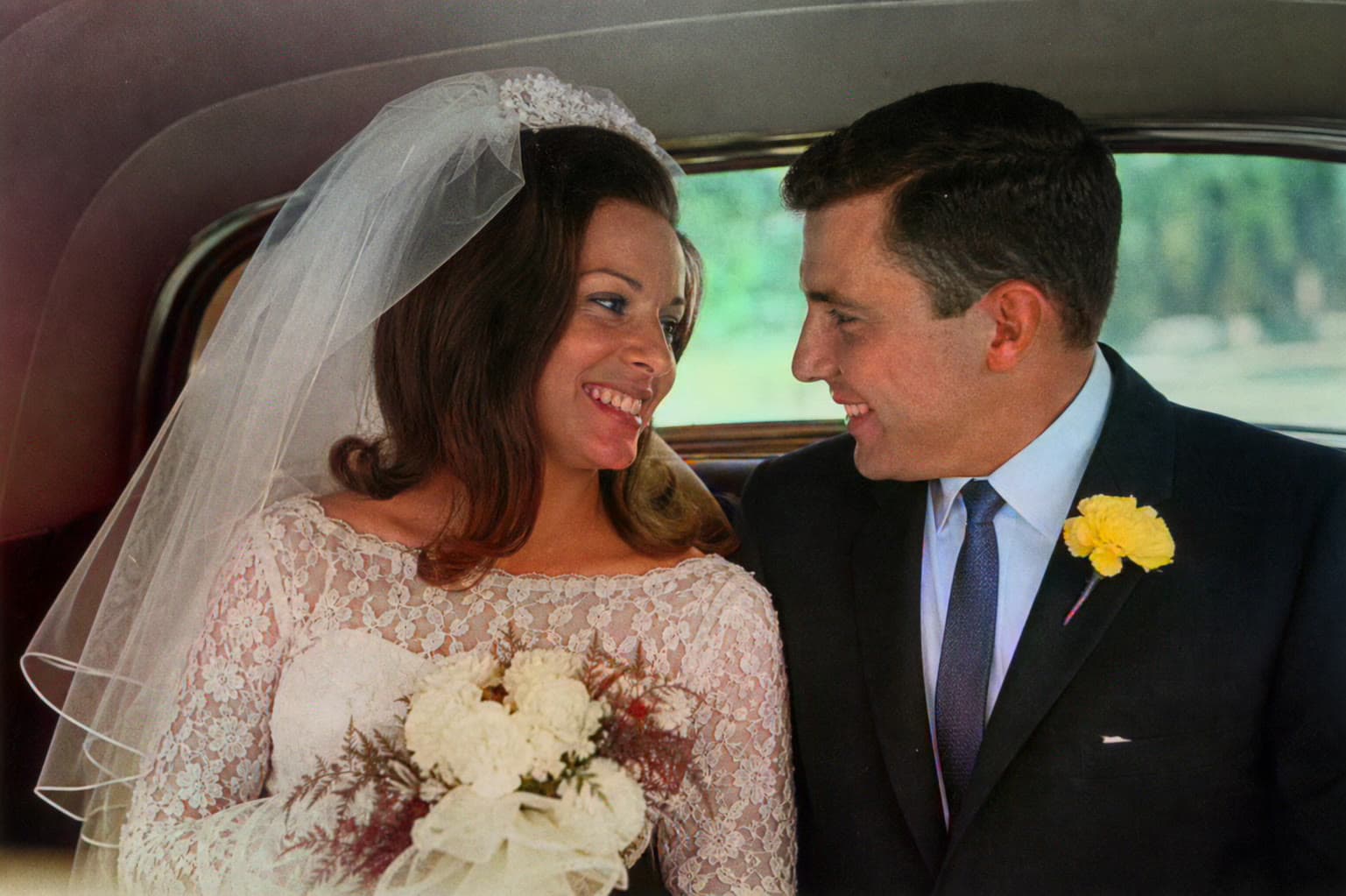 After
AfterCreate a larger result from scans that look undersized on phones, tablets, and high-resolution computer displays.
Strengthen edges and recognizable features that became soft through scanning, resizing, or older compression.
Use a clearer result as the starting point for colorization, a family slideshow, or a carefully labeled digital archive.
An old photo enhancer focuses on visibility: resolution, sharpness, edge definition, and the appearance of fine detail. Historical restoration is a broader craft that may include removing tears, rebuilding missing regions, correcting stains, and making decisions based on other reference photographs.
The current Restore mode is best understood as AI enhancement and upscaling. It can make a small scan easier to view, but generated micro-detail is still a prediction. For museum, legal, or scholarly use, retain the original and document every edited version.
Enhancement is useful when a photograph looks acceptable at thumbnail size but becomes pixelated or soft when enlarged. It also helps when a family member sent a compressed copy and no better scan is immediately available. Portraits with clear overall shapes generally provide the most reliable results.
If the source is already a large, sharp archival scan, enhancement may add little and can make faces look overly smooth. Compare at normal viewing size as well as close up; more artificial detail is not always a better family photograph.
Name the untouched scan clearly, for example family-wedding-1962-original.tif or .jpg. Create a separate enhanced copy, record the date and tool used, and avoid repeatedly saving over the same compressed JPEG. This simple habit protects the best evidence you have while still letting relatives enjoy a cleaner image.
After enhancement, decide what the photograph needs next. A black-and-white image may benefit from colorization; a damaged print with missing areas may require a human retoucher; a successful result may simply need a caption with names, place, and year.
Common questions
No. It can predict clearer edges and detail, but strong motion blur or an out-of-focus face may not contain enough reliable structure to recover.
Basic resizing only creates more pixels. AI upscaling also predicts detail and edge structure, which can look clearer but should still be treated as generated information.
Enhancement can help a small scan, but inspect the final image at the intended print size first. For important prints, keep the original and test a small proof.
Yes. For a small black-and-white scan, enhance it first, download that result, and then upload the clearer copy to Colorize.