Built for family archives
Portraits, backyard snapshots, and album pages are the photos this tool is meant to revive—not stock graphics or modern selfies.
Free AI photo colorizer
Upload a faded or black-and-white family picture, review the color interpretation beside the original, and download the result without an account or watermark.
No signup · No watermark · JPG, PNG and WebP up to 10MB
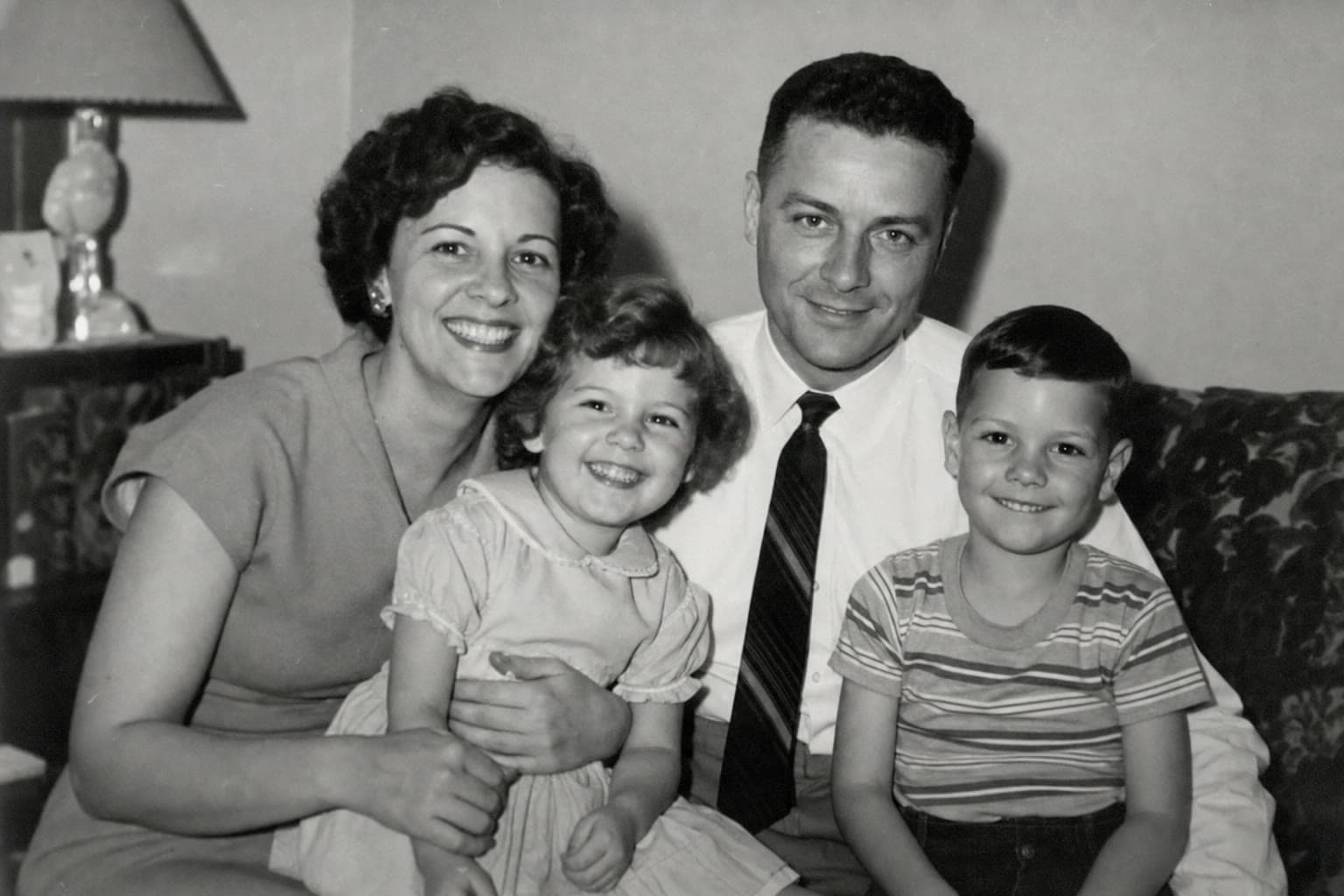 Before
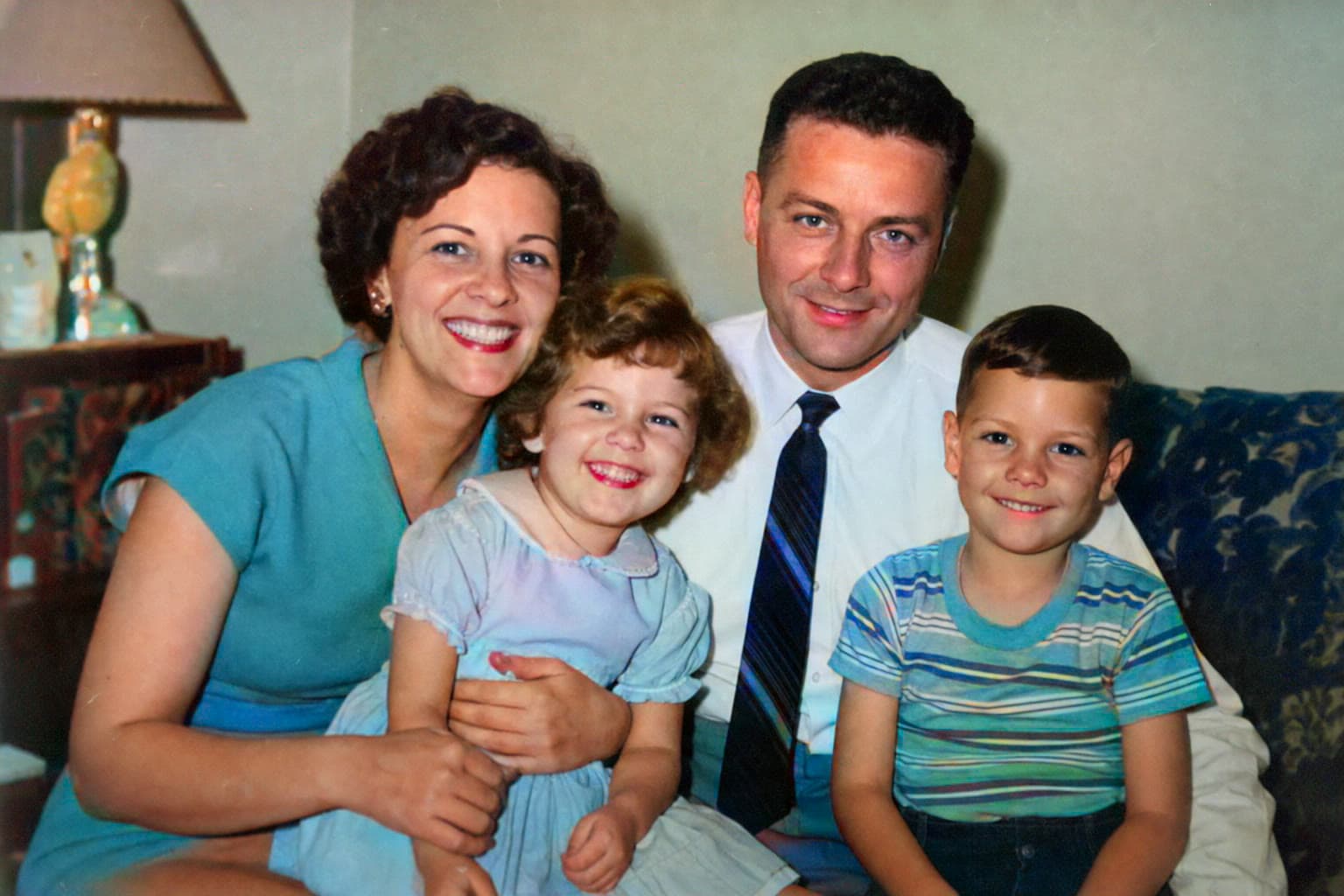 After
AfterPortraits, backyard snapshots, and album pages are the photos this tool is meant to revive—not stock graphics or modern selfies.
The current colorizer does not require signup, a credit card, or a watermark on the downloaded file.
Keep the original visible so you can notice invented color, oversaturated clothing, or details that need a second look.
Colorizing an old photo is not recovering a hidden original. The file you upload is usually grayscale or faded, and the colorizer predicts a palette from faces, clothing, sky, plants, interiors, and other visual cues. The result can feel immediate and personal even when a specific dress, wall, or car was a different color in real life.
That is why the original scan still matters. Treat the colorized file as a viewing copy for family sharing, and keep the unedited photograph as the archive. If a relative remembers a uniform, flag, or house color, use that knowledge when you decide whether to keep, adjust, or discard the AI result.
Start from the best scan you have. A 300 DPI flatbed scan usually outperforms a phone photo taken through glass or a screenshot from a messaging app. Crop album borders, correct obvious rotation, and avoid heavy filters before you upload.
If the picture is small, blurry, or badly compressed, restore it first—or choose the restore-then-colorize treatment. Clearer faces and edges give the colorizer stronger shapes to interpret. Save each version separately so you can return to the source.
A photograph with large tears, missing faces, or heavy stains will not become historically complete just because color is added. Color can also make damage more obvious. Repair or restore the structure first, then colorize the cleaner copy.
Very dark, overexposed, or textureless scans may leave gray patches where the model cannot commit to a color. A better scan is usually more useful than repeatedly processing the same weak file.
Common questions
Yes. You can colorize old photos and download the result without creating an account or adding a ColorizeOldPhoto watermark. Fair-use limits may apply as the service grows.
Often, yes. Faded or sepia-tinted pictures can be interpreted as a new color image. The result is still an estimate, not a recovery of the original dyes.
No. The current tool returns the generated image without adding a watermark.
For a soft black-and-white scan, restore first. You can run those steps separately or use the restore-then-colorize option on the processing page.